
Ankara Science University Student Wireless Network Usage Information
To use the wired and wireless network services operated by the Information Technology Department on our University campuses, users are required to authenticate with a username and password. This practice is implemented to fulfill the obligations under Law No. 5651 and to prevent unauthorized use by individuals other than University staff and students.
Students can access the Ogrenci-802.1x wireless network using the credentials specified below and the appropriate connection settings for their devices.
Students who wish to access the internet through the University's wireless network must configure the appropriate connection settings on their computers, smartphones, or tablets.
The wireless network is broadcast under the name Ogrenci-802.1x. This is a secure wireless network that students can access using their personal username and password.
Students may connect a maximum of two devices simultaneously to the wireless network using the same username and password.
iPhone and iPad (iOS) Connection Steps
Wireless network name: Ogrenci-802.1x
The configuration profile must be downloaded using the Safari browser.
Download the iOS Configuration Profile
1. Open the Settings menu
After downloading the configuration profile using Safari, go to Settings > General > VPN & Device Management.
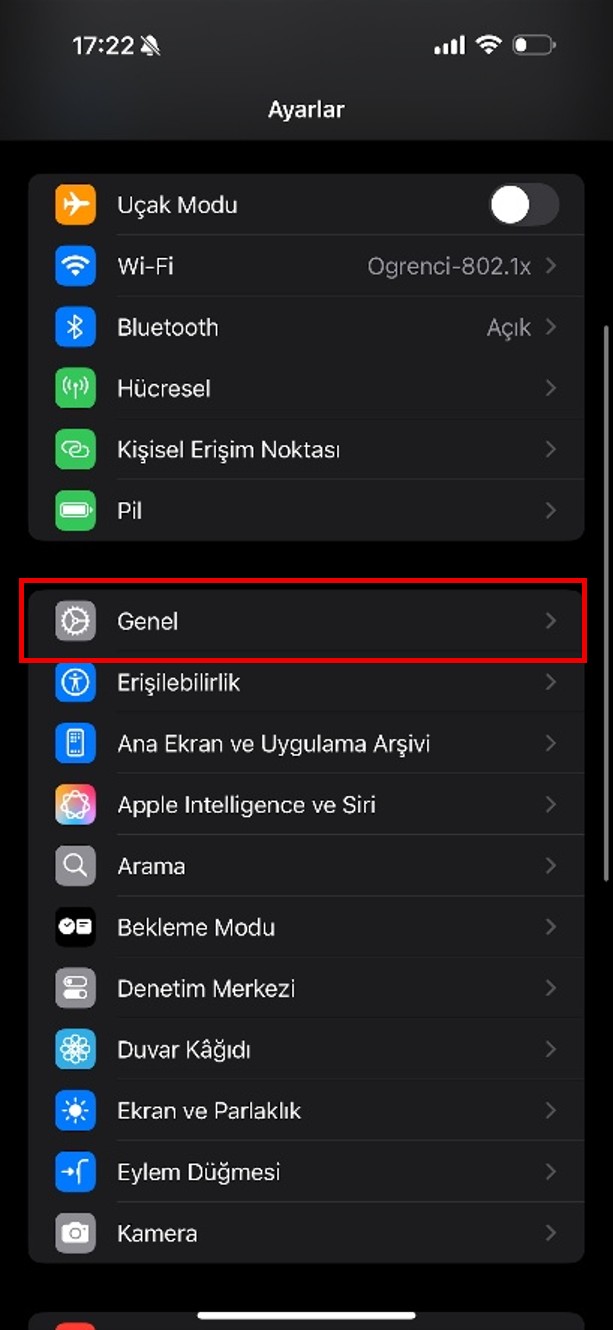
In the Settings menu, tap General.
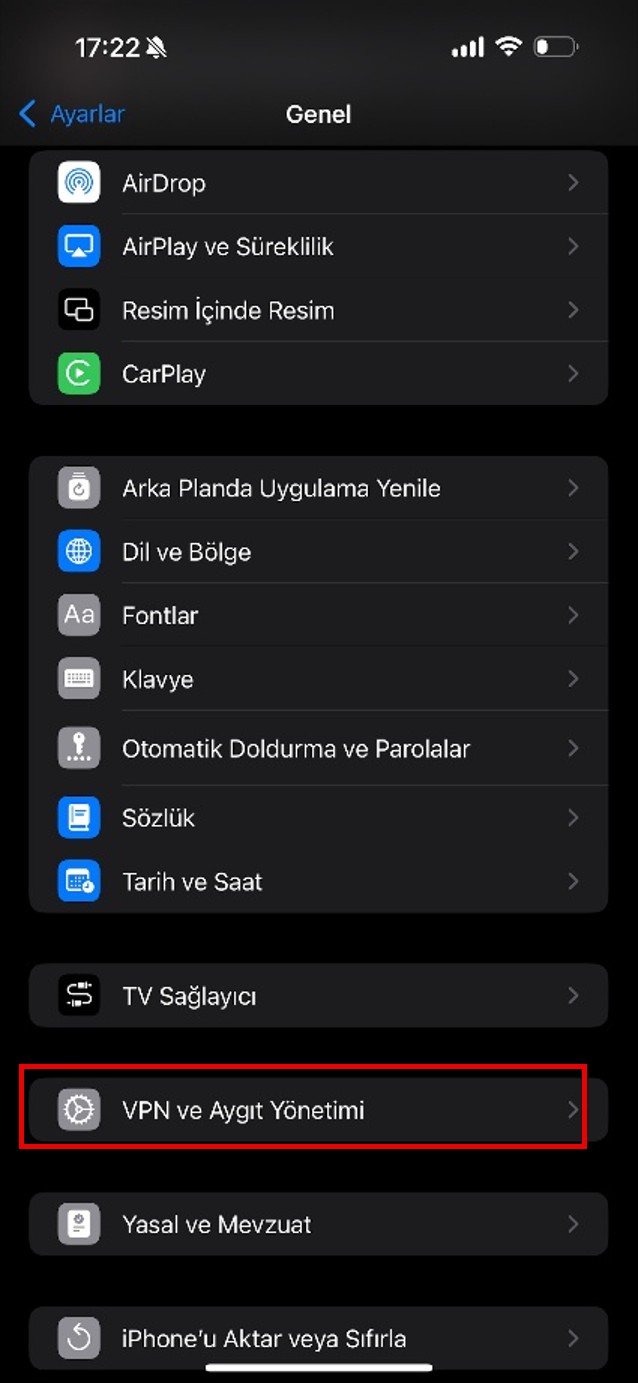
Tap VPN & Device Management.
2. Select the downloaded profile
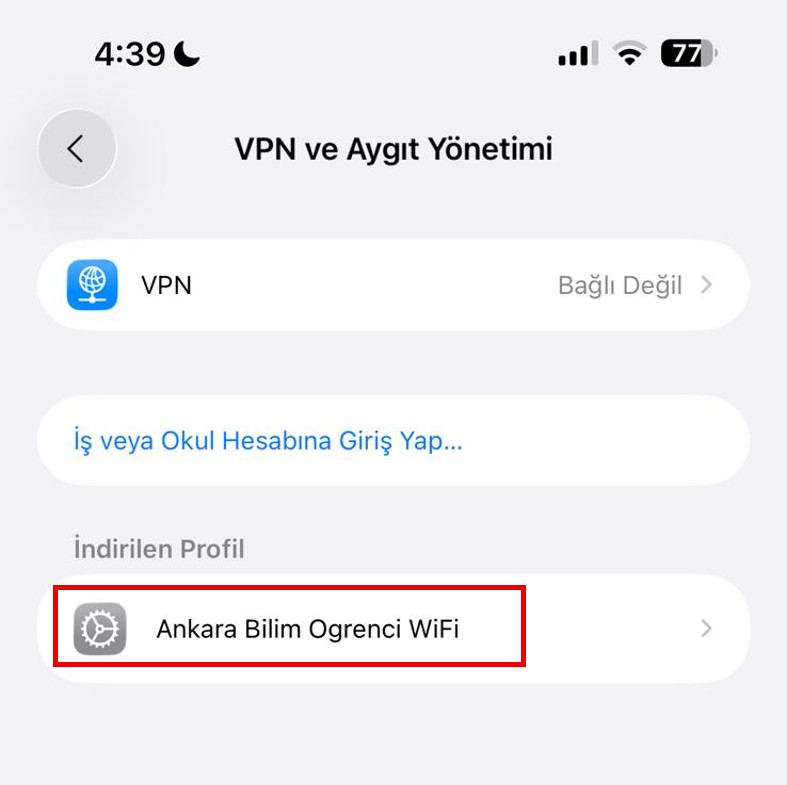
Under Downloaded Profile, tap Ankara Bilim Ogrenci WiFi. If the profile does not appear, download the configuration profile again using Safari.
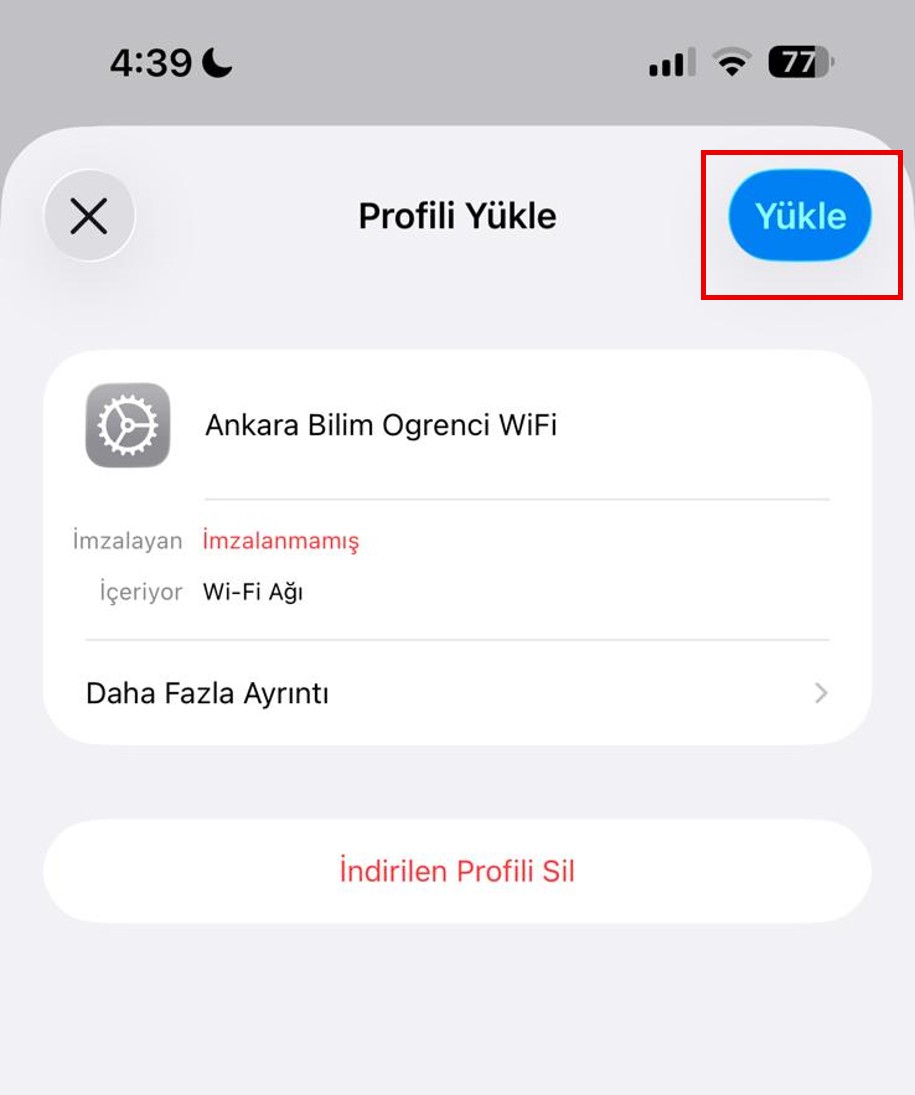
3. Install the profile
On the Install Profile screen, tap Install in the upper-right corner.
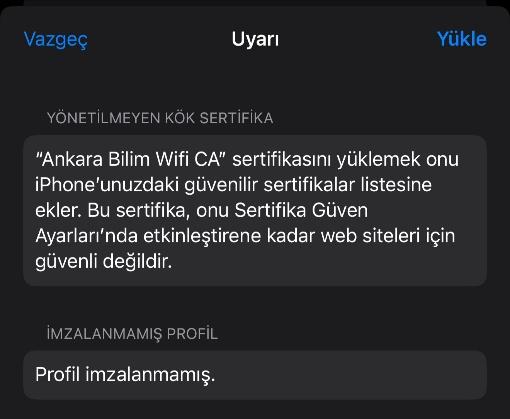
4. Confirm the installation warning
On the warning screen that appears, tap Install in the upper-right corner to confirm the installation.
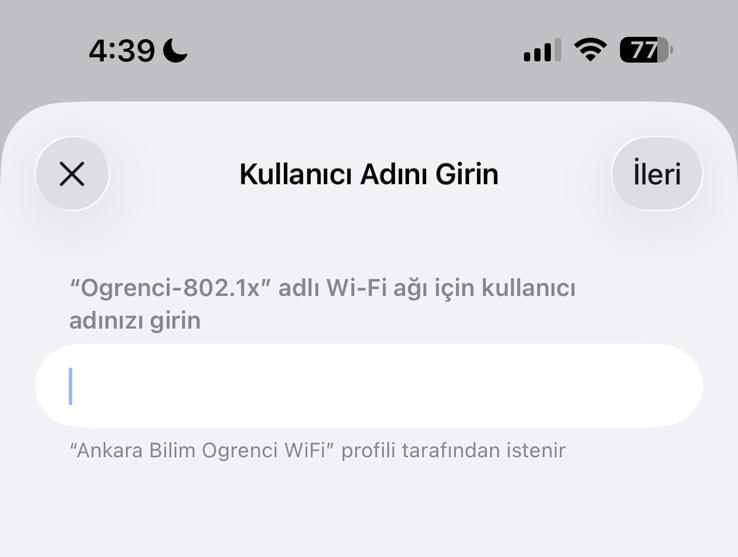
5. Enter your username
On the Enter Username screen, enter your student email address ending in @ankarabilim.edu.tr and tap Next.
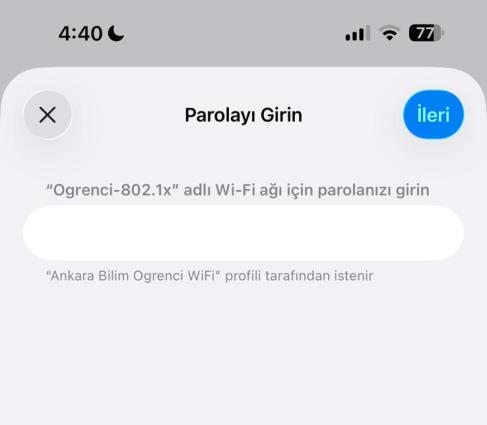
6. Enter your password
On the Enter Password screen, enter the password for your University email account and tap Next.
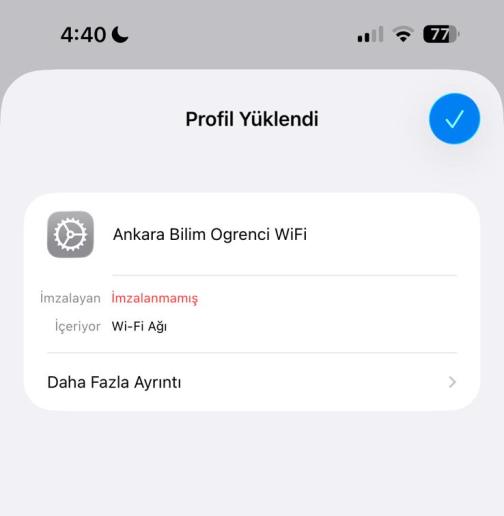
7. Check the connection
If your credentials are entered correctly, the configuration profile will be installed and your device will connect to the Ogrenci-802.1x wireless network.
Support: If you experience any problems during connection or installation, you can request support by emailing ogrencidestek@ankarabilim.edu.tr.
Android 11 and Later Connection Steps
Wireless network name: Ogrenci-802.1x
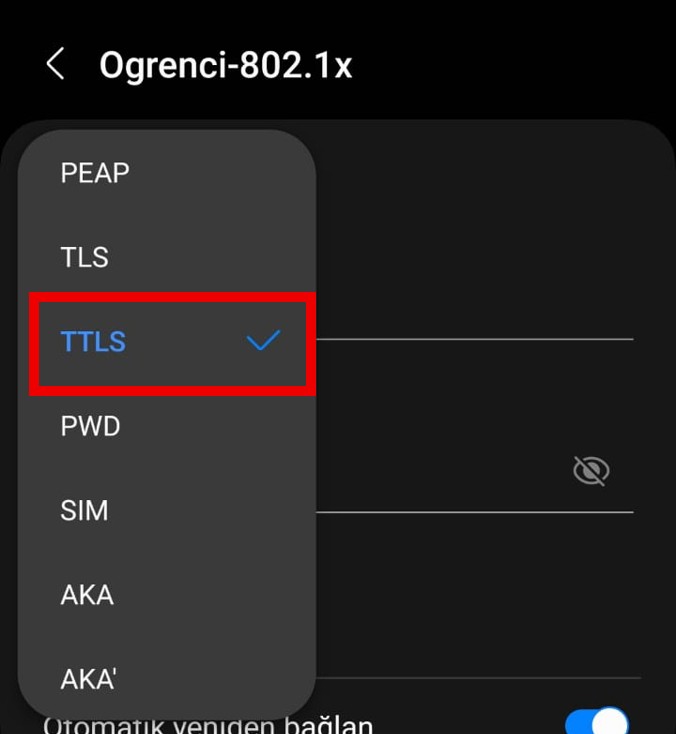
EAP method: TTLS
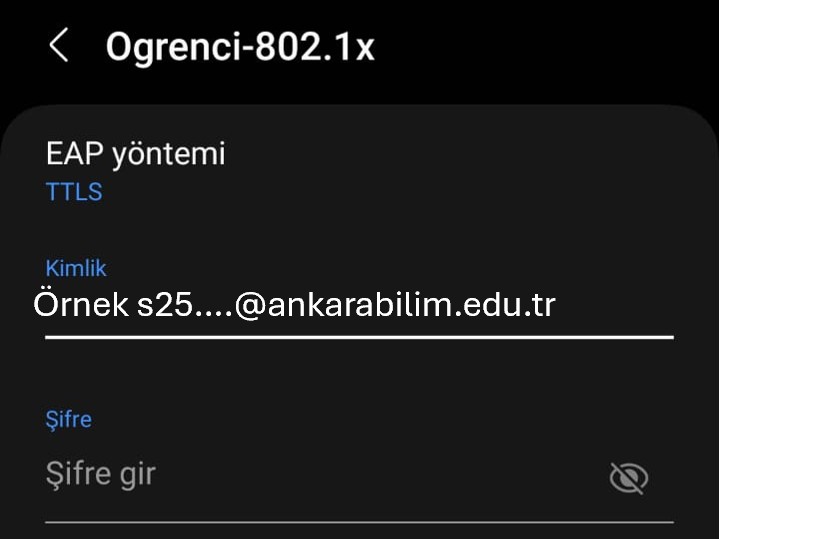
Identity: Your student email address ending in @ankarabilim.edu.tr
Password: Your Ankara Science University email password
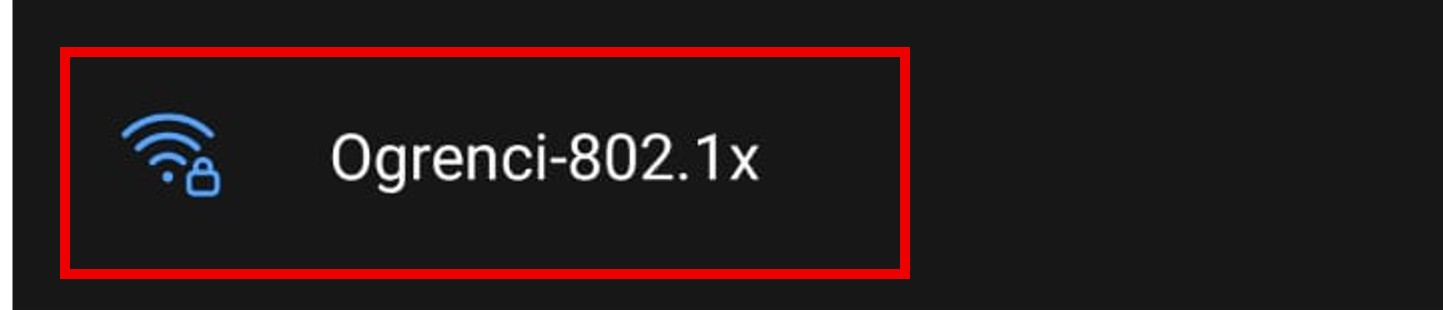
1. Select the wireless network
Open your device's Wi-Fi settings and select Ogrenci-802.1x from the list of available networks.
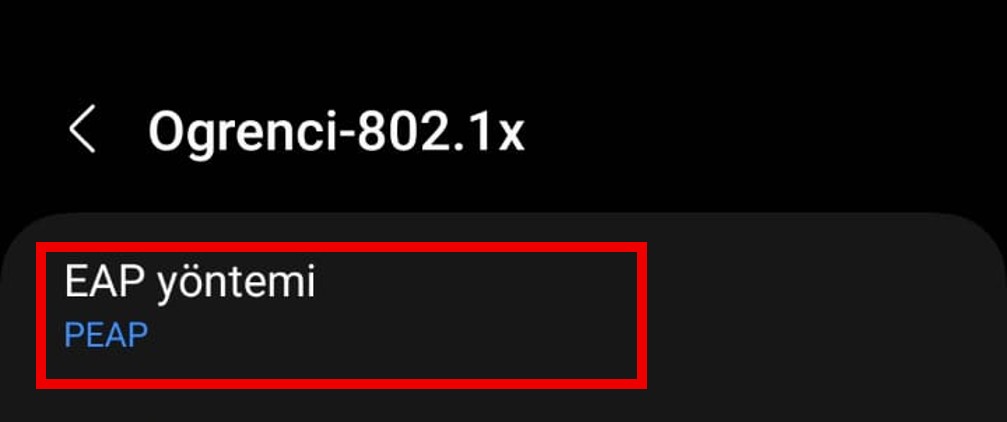
2. Set the EAP method to TTLS
On the connection screen, tap the EAP method field and select TTLS from the list.
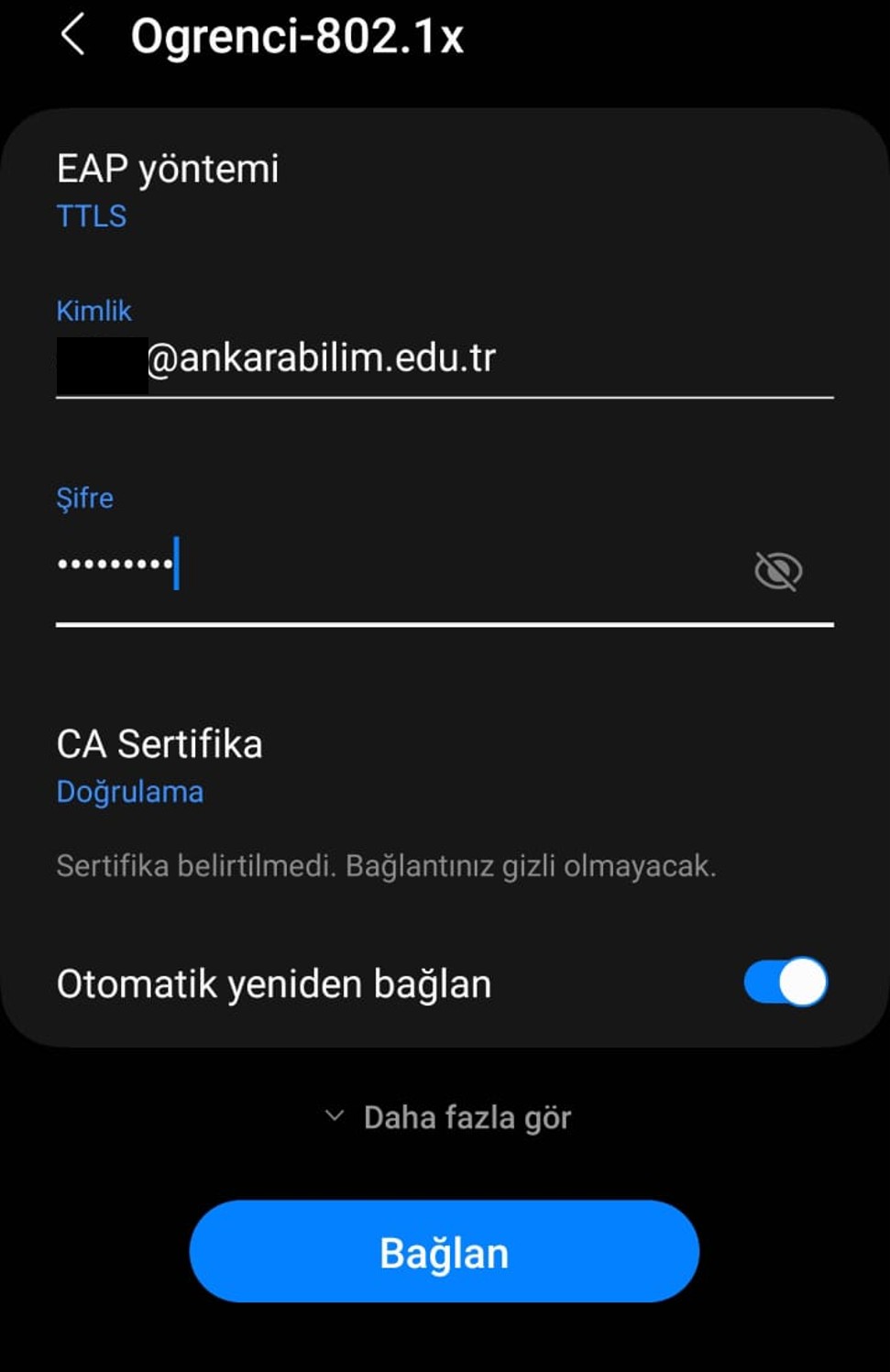
3. Enter your credentials
In the Identity field, enter your student email address ending in @ankarabilim.edu.tr. In the Password field, enter the password for your University email account.
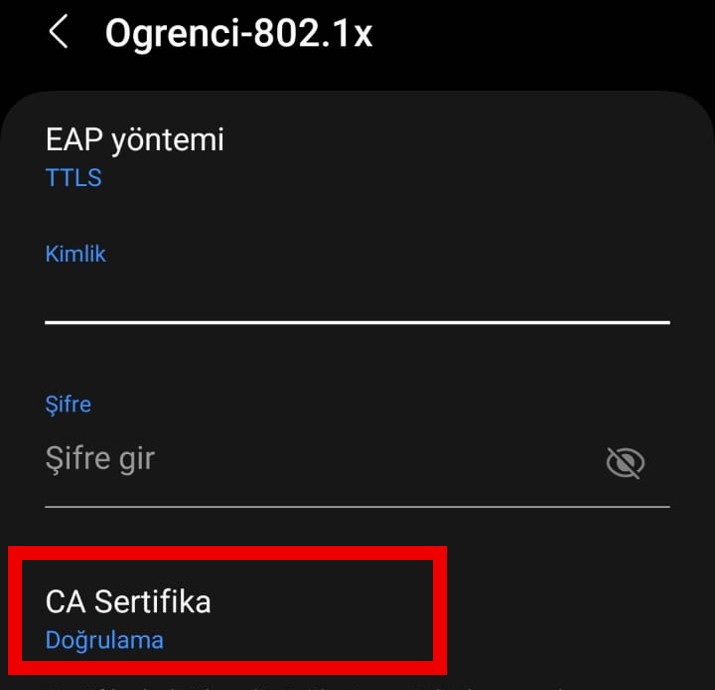
4. Select the CA Certificate setting
In the CA Certificate field, select the Verification option displayed on your device.
5. Connect to the network
After checking the information you entered, tap Connect. The first connection may take longer than usual. If you are sure that your information is correct, wait briefly and, if necessary, tap Connect again.
Support: If you experience any problems during connection or setup, you can request support by emailing ogrencidestek@ankarabilim.edu.tr.
Android Connection Steps Using a Certificate
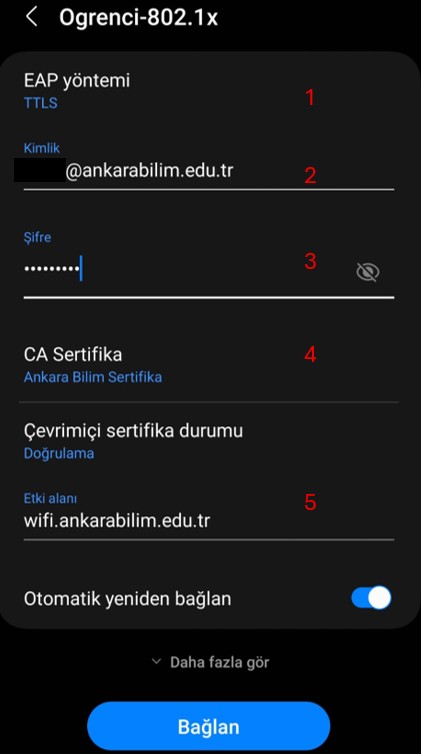
Wireless network name: Ogrenci-802.1x
EAP method: TTLS
CA certificate: Ankara Bilim Sertifika
Online certificate status: Verification
Domain: wifi.ankarabilim.edu.tr
Identity: Your student email address ending in @ankarabilim.edu.tr
Password: Your Ankara Science University email password
Download the Android Wi-Fi Certificate
1. Download and install the certificate on your device
Tap the link above to download the certificate prepared for the Ankara Science University wireless network. Then, in your device's Settings app, follow the path below:
Security and privacy > More security settings > Install from device storage > Wi-Fi certificate
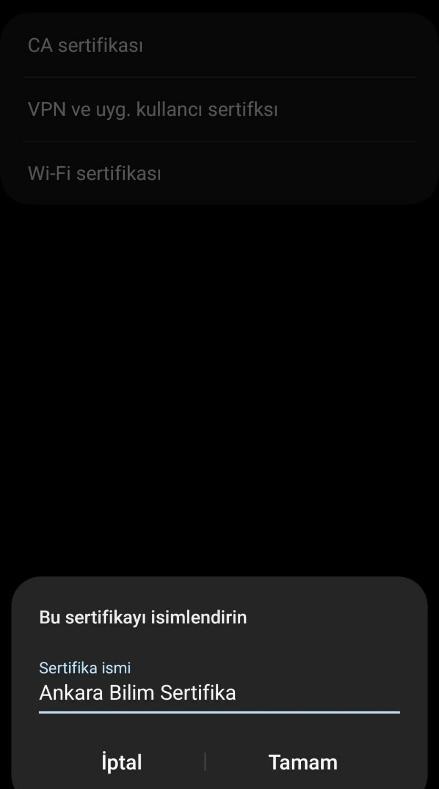
Select the certificate you downloaded. When prompted for a certificate name, you may enter Ankara Bilim Sertifika and tap OK.
2. Select the Ogrenci-802.1x network
Open your device's Wi-Fi settings and select Ogrenci-802.1x from the list of available networks.
3. Set the EAP method to TTLS
On the connection screen, tap the EAP method field and select TTLS from the list.
4. Enter your credentials
In the Identity field, enter your student email address ending in @ankarabilim.edu.tr. In the Password field, enter the password for your University email account.
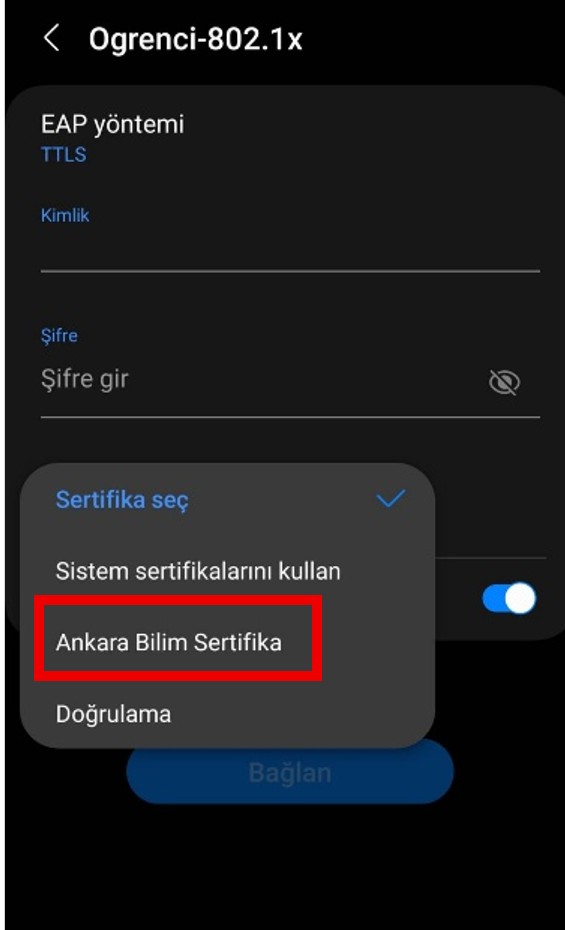
5. Select the CA certificate you installed
Tap the CA Certificate field and select the Ankara Bilim Sertifika certificate you installed earlier. In the Online certificate status field, select Verification.
6. Enter the domain and connect to the network
Enter wifi.ankarabilim.edu.tr in the Domain field. After checking the information you entered, tap Connect.
If the connection fails, check your student email address, password, selected certificate, and domain information again.
Support: If you experience any problems during connection or setup, you can request support by emailing ogrencidestek@ankarabilim.edu.tr.
Windows Connection Steps
Wireless network name: Ogrenci-802.1x
Security type: WPA2-Enterprise
Network authentication method: Microsoft: EAP-TTLS
Username: Your student email address ending in @ankarabilim.edu.tr
Password: Your Ankara Science University email password
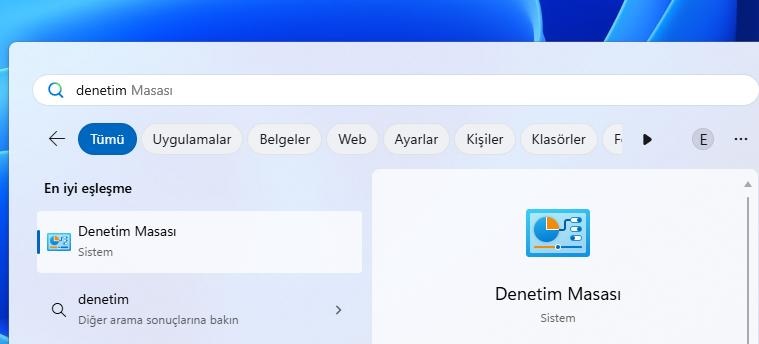
1. Open Control Panel
Type Control Panel in the Windows search box and click the displayed result.
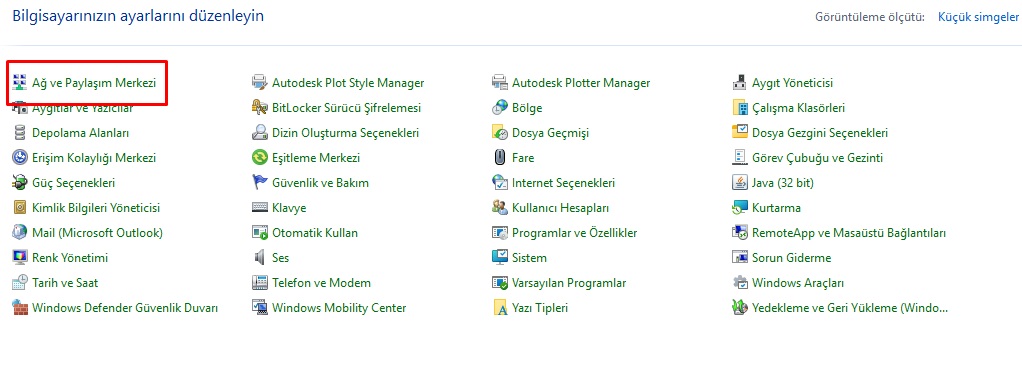
2. Open Network and Sharing Center
In Control Panel, click Network and Sharing Center.
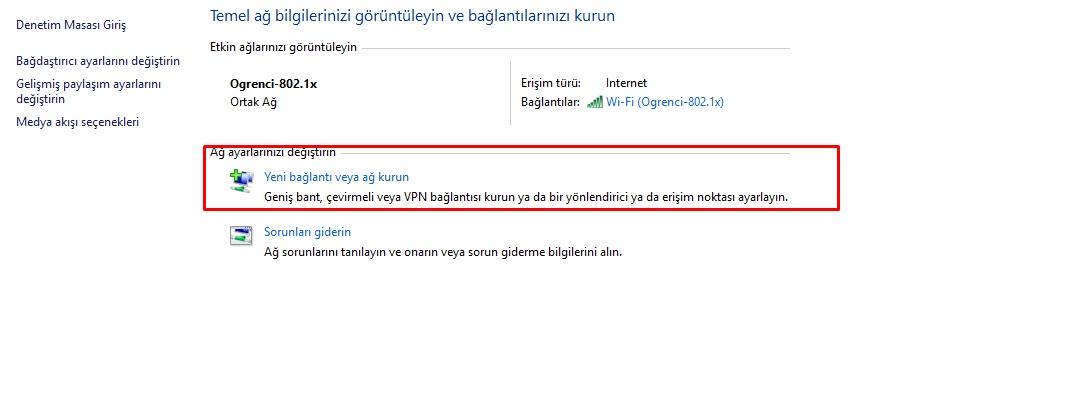
3. Set up a new connection or network
On the screen that opens, click Set up a new connection or network.
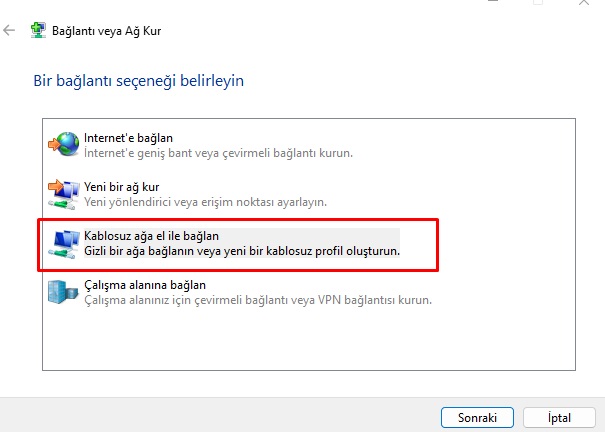
4. Manually connect to a wireless network
From the connection options, select Manually connect to a wireless network and click Next.
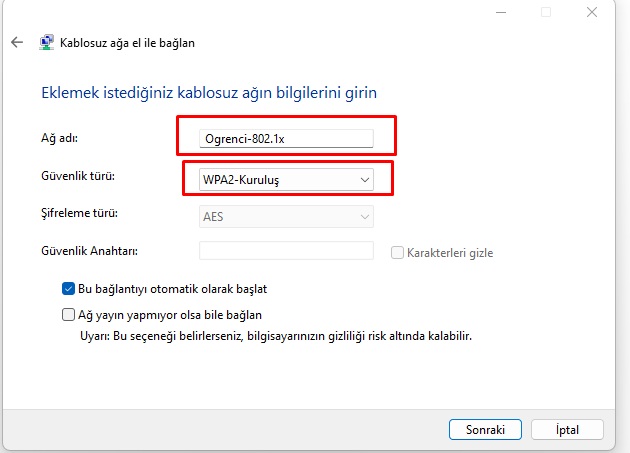
5. Enter the network name and security type
Enter Ogrenci-802.1x in the Network name field. Select WPA2-Enterprise from the Security type field and click Next.
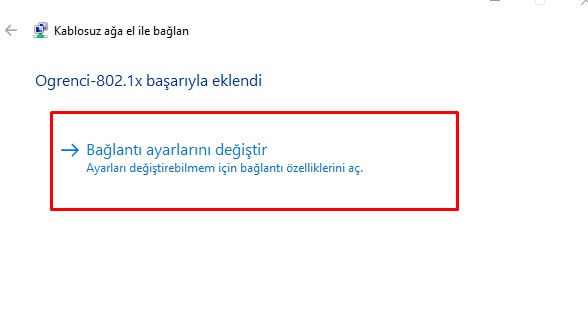
6. Change the connection settings
After the wireless network has been added successfully, click Change connection settings.
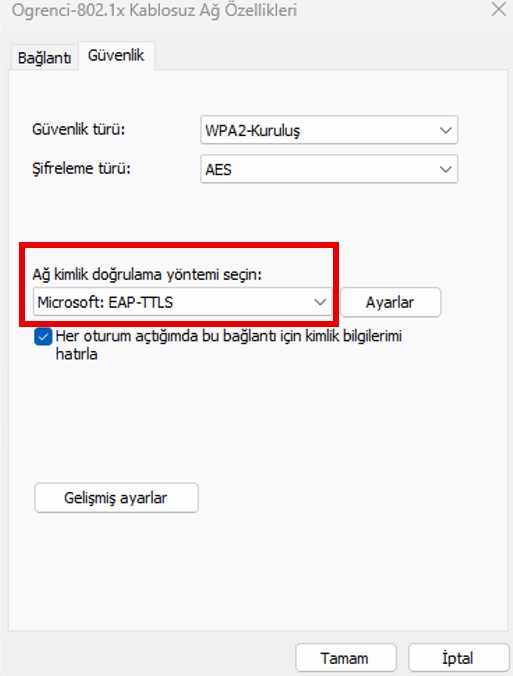
7. Select EAP-TTLS as the network authentication method
On the Security tab, select Microsoft: EAP-TTLS from the Choose a network authentication method field. Then click OK.
8. Connect to the Ogrenci-802.1x network
Open the Windows Wi-Fi menu. Select Ogrenci-802.1x from the network list and click Connect.
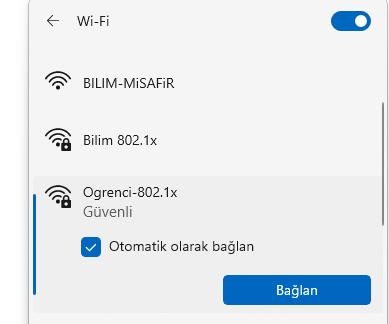
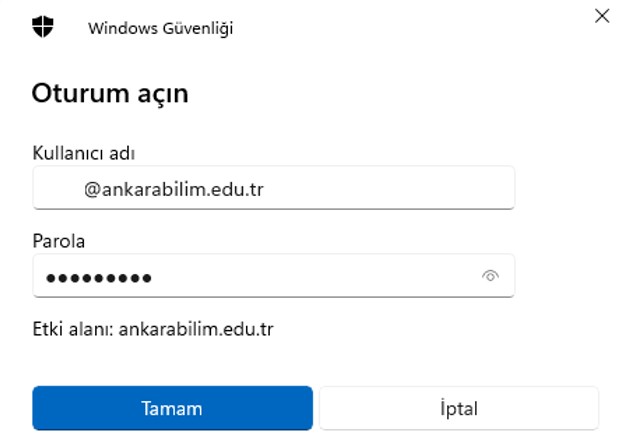
9. Enter your username and password
In the Username field, enter your student email address ending in @ankarabilim.edu.tr. In the Password field, enter your University email password. Then click OK.
Support: If you experience any problems during connection or setup, you can request support by emailing ogrencidestek@ankarabilim.edu.tr.
macOS Connection Steps
Wireless network name: Ogrenci-802.1x
Configuration profile: Ankara Bilim Ogrenci WiFi
Username: Your student email address ending in @ankarabilim.edu.tr
Password: Your Ankara Science University email password
Download the macOS Configuration Profile
1. Download the configuration profile
Click the link above to download the Configuration Profile (.mobileconfig) prepared for the Ankara Science University wireless network. After the download is complete, double-click the file to open it.
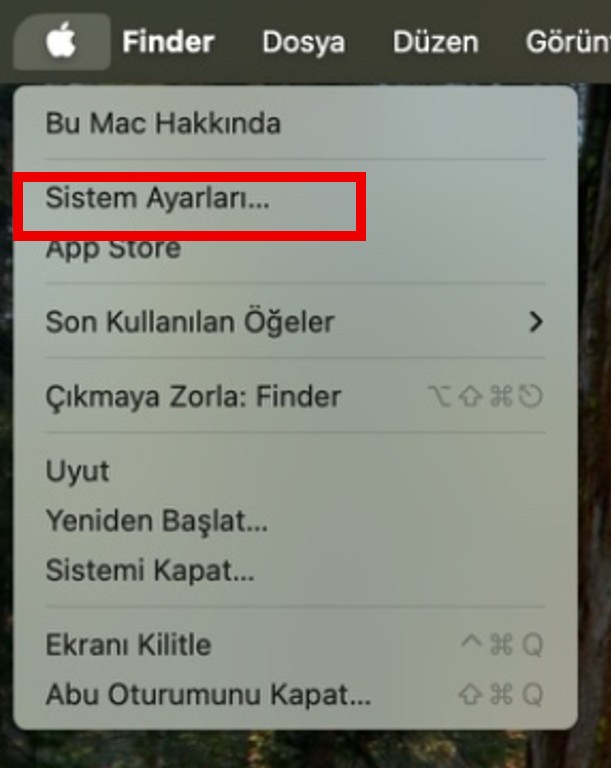
Then open System Settings from the Apple menu.
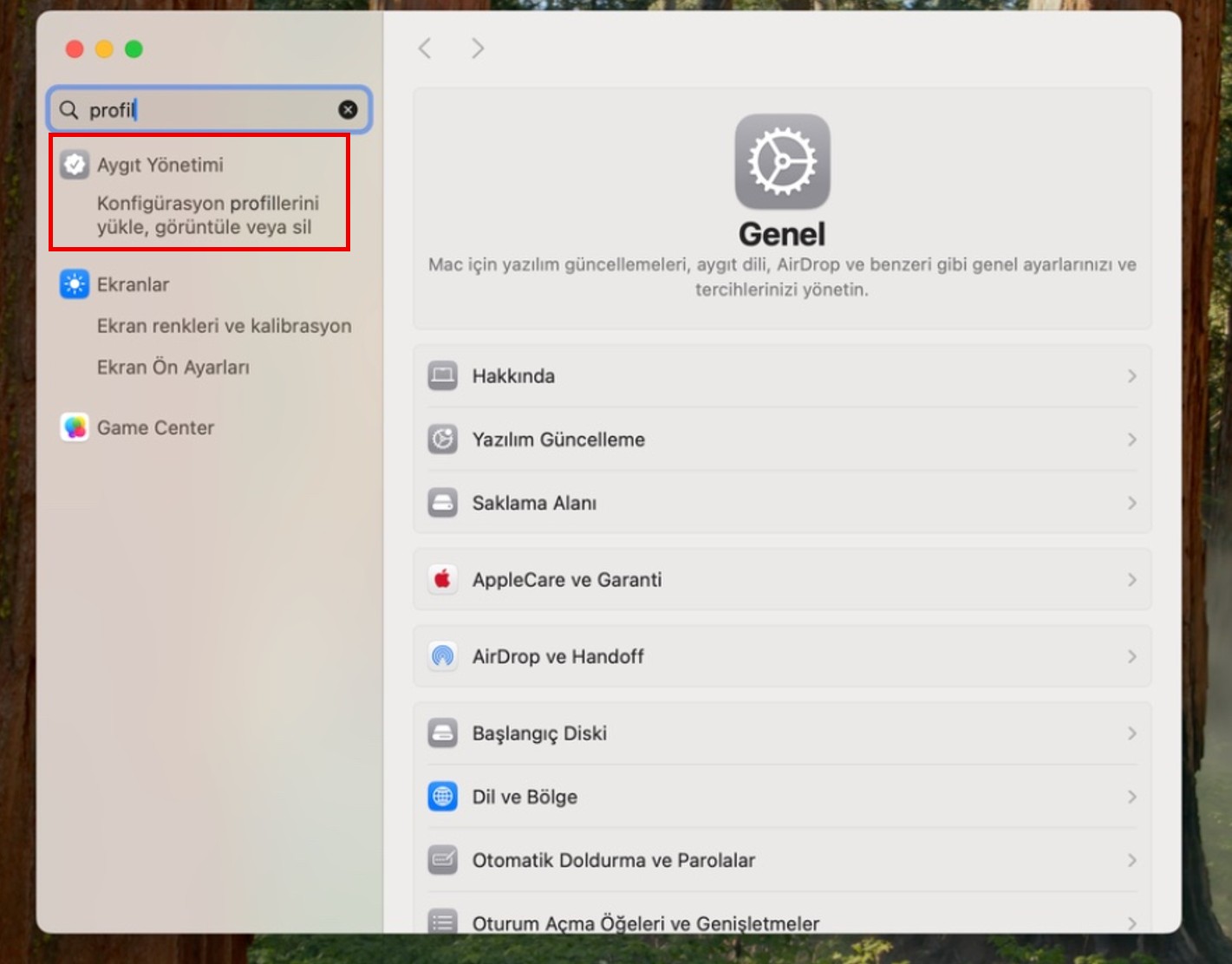
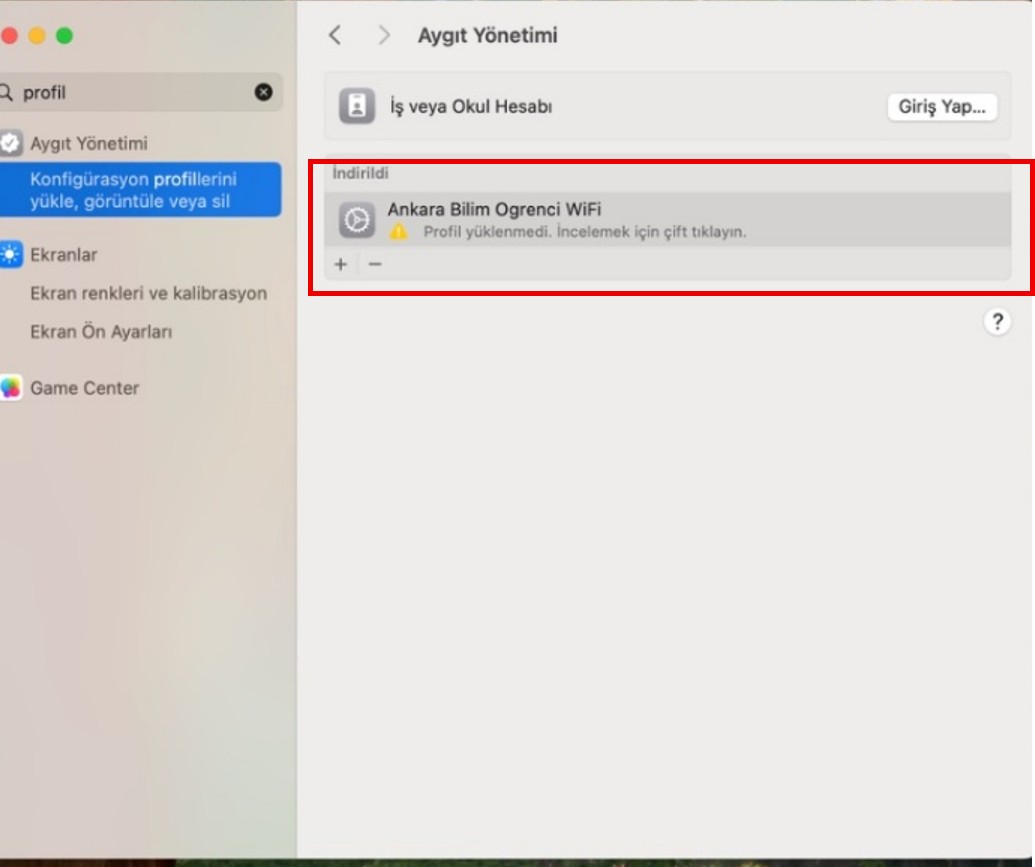
2. Open Device Management
Type profile in the search field in System Settings. Under Device Management, click the option for installing, viewing, or removing configuration profiles.
3. Select the Ankara Bilim Ogrenci WiFi profile
Select the Ankara Bilim Ogrenci WiFi profile displayed on the right and double-click it.
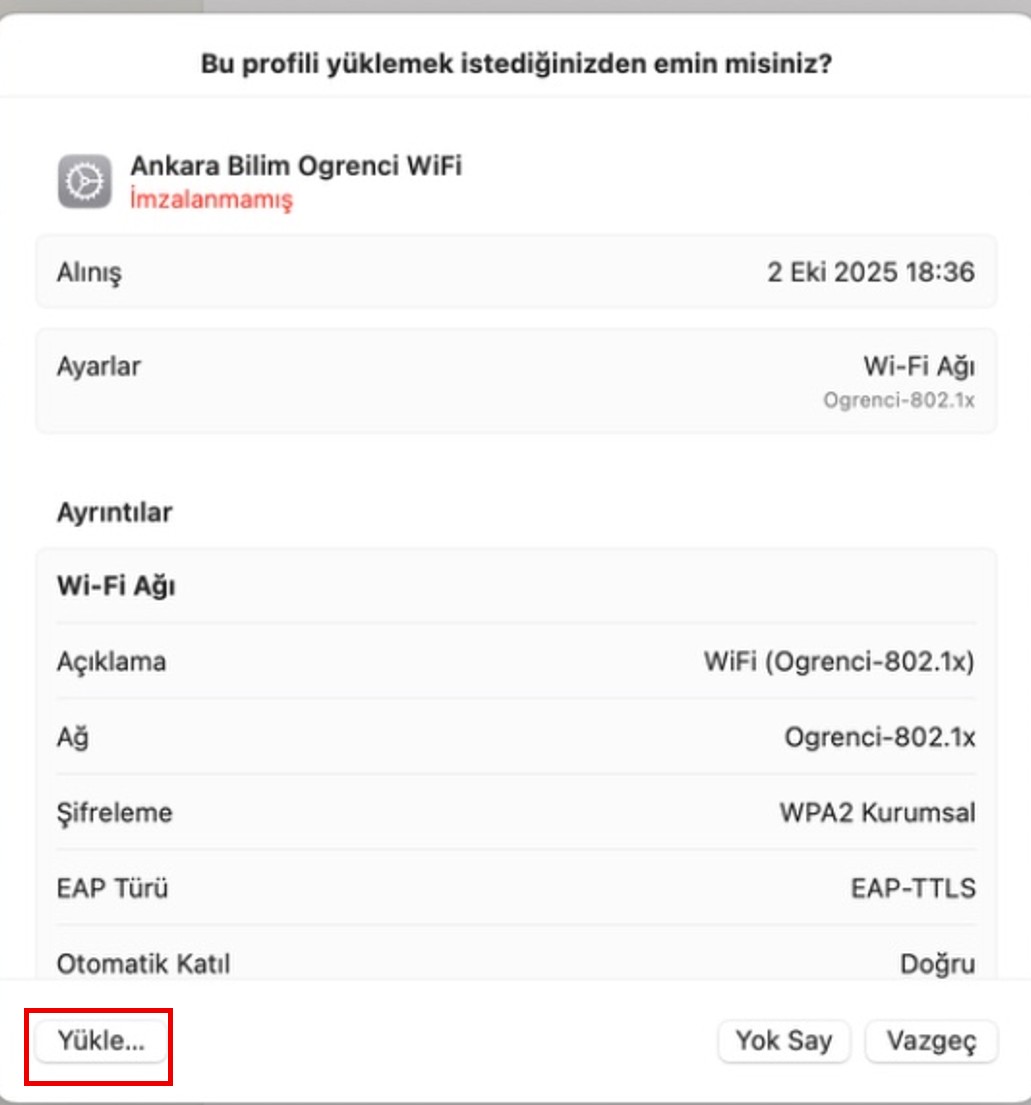
4. Install the profile
Click the Install button in the lower-left corner of the profile details screen.
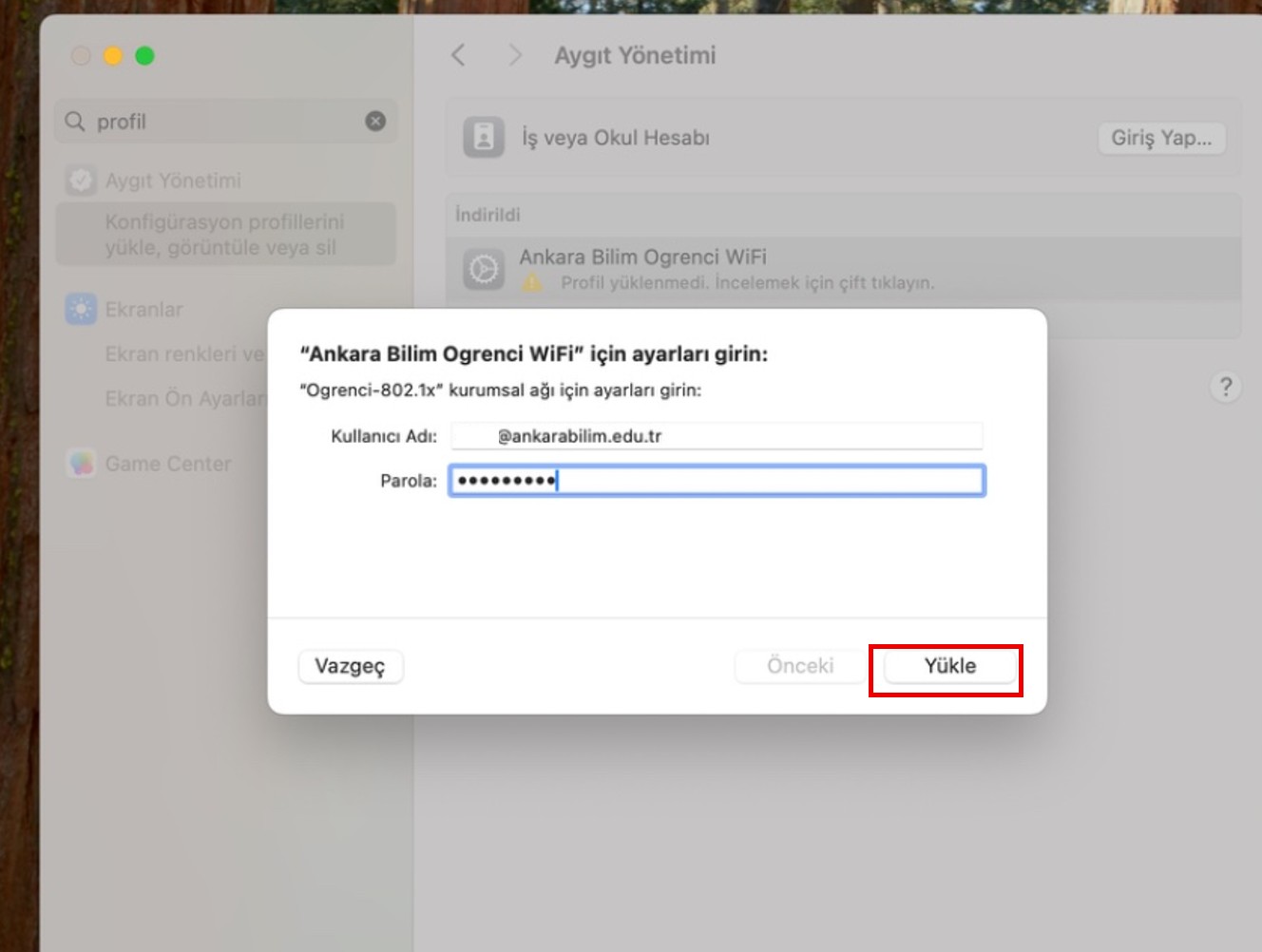
5. Enter your username and password
On the screen that opens, enter your student email address ending in @ankarabilim.edu.tr in the Username field and your University email password in the Password field. Then click Install.
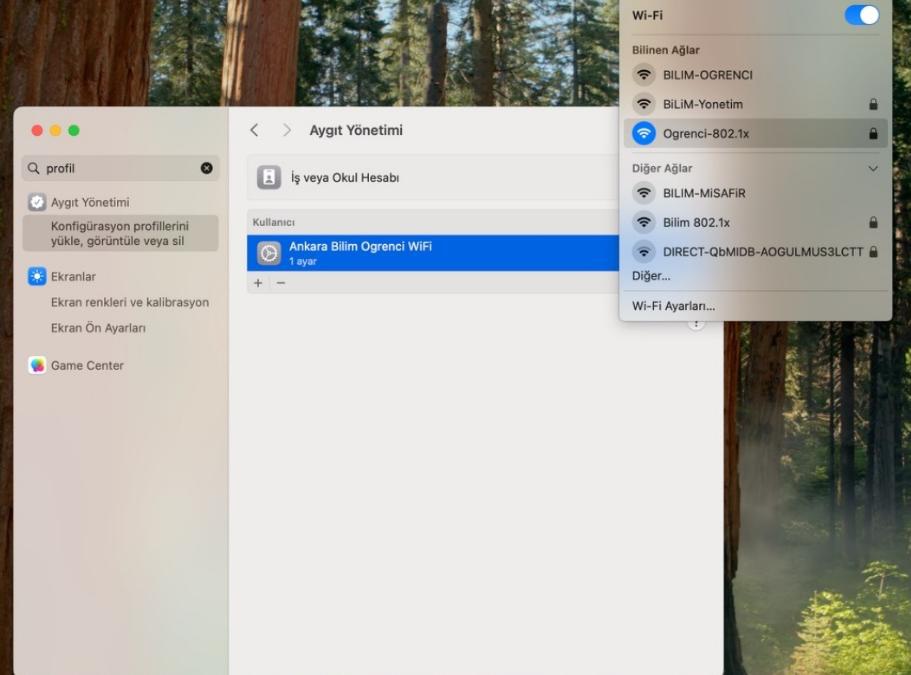
6. Check the connection
If your credentials are entered correctly, the profile will be installed and your device will connect to the Ogrenci-802.1x wireless network.
Support: Menu appearances may vary slightly depending on your macOS version. If you experience any problems during profile installation or connection, you can request support by emailing ogrencidestek@ankarabilim.edu.tr.