Ankara Science University - Eduroam Setup Guide
Follow the setup instructions for your device to connect to eduroam securely and reliably.
All staff and students should first configure the “eduroam” Wi-Fi network on their devices. Once configured, you can use the account information provided by the University to access the internet wherever the “eduroam” network is available. It is recommended to use this network when visiting universities and institutions outside our University.
Setup for Computers
(Windows and macOS)
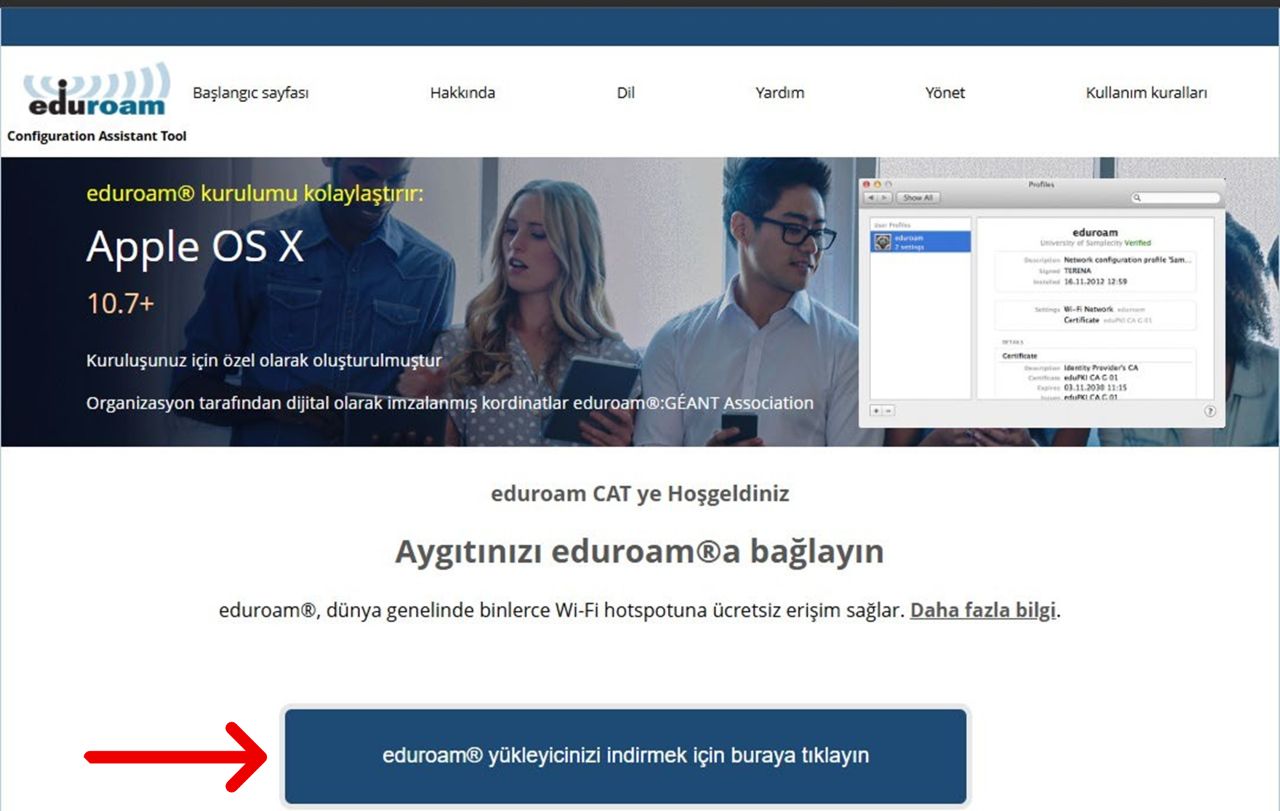
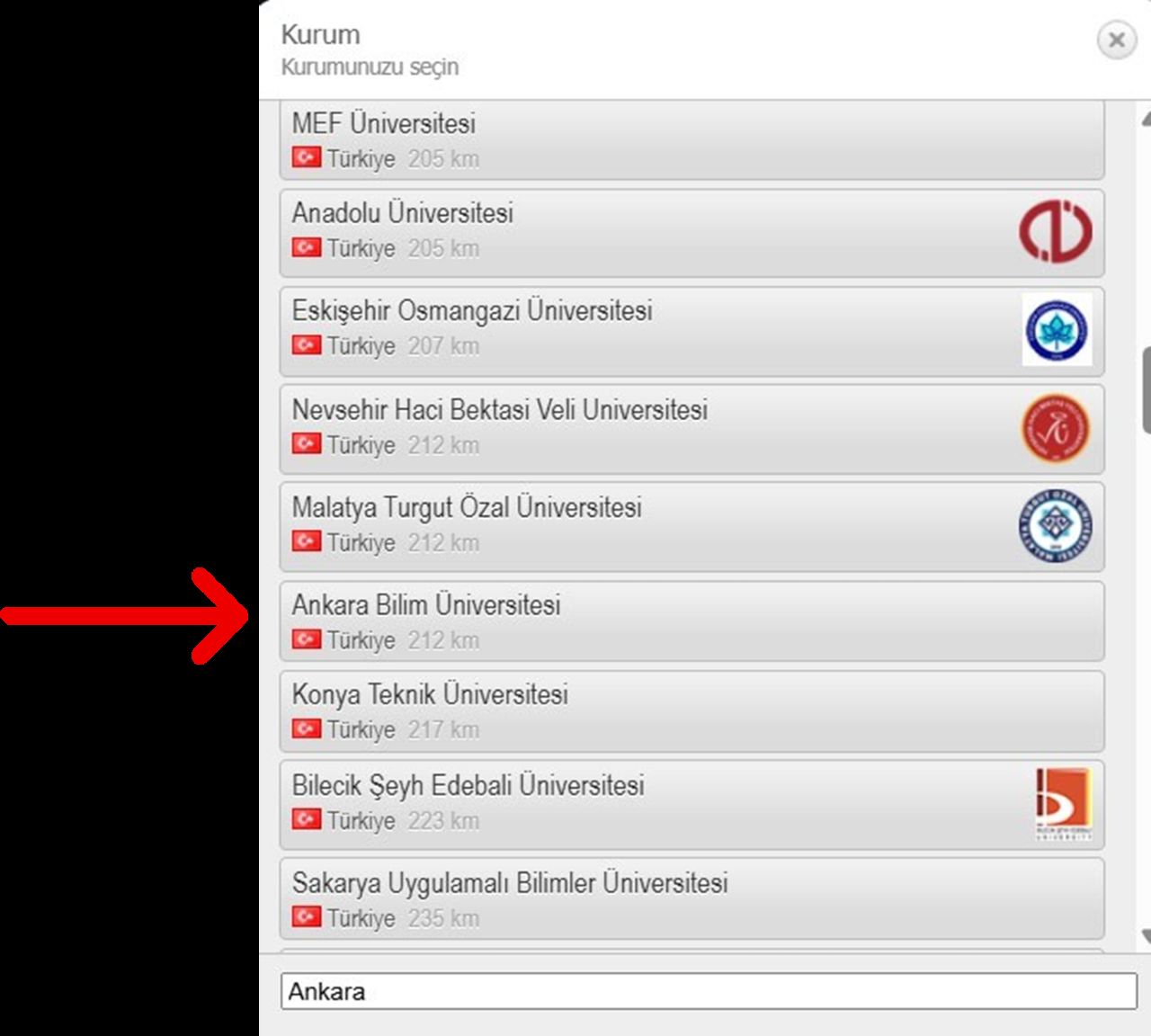
2. Click the Download button on the main page and select Ankara Science University.
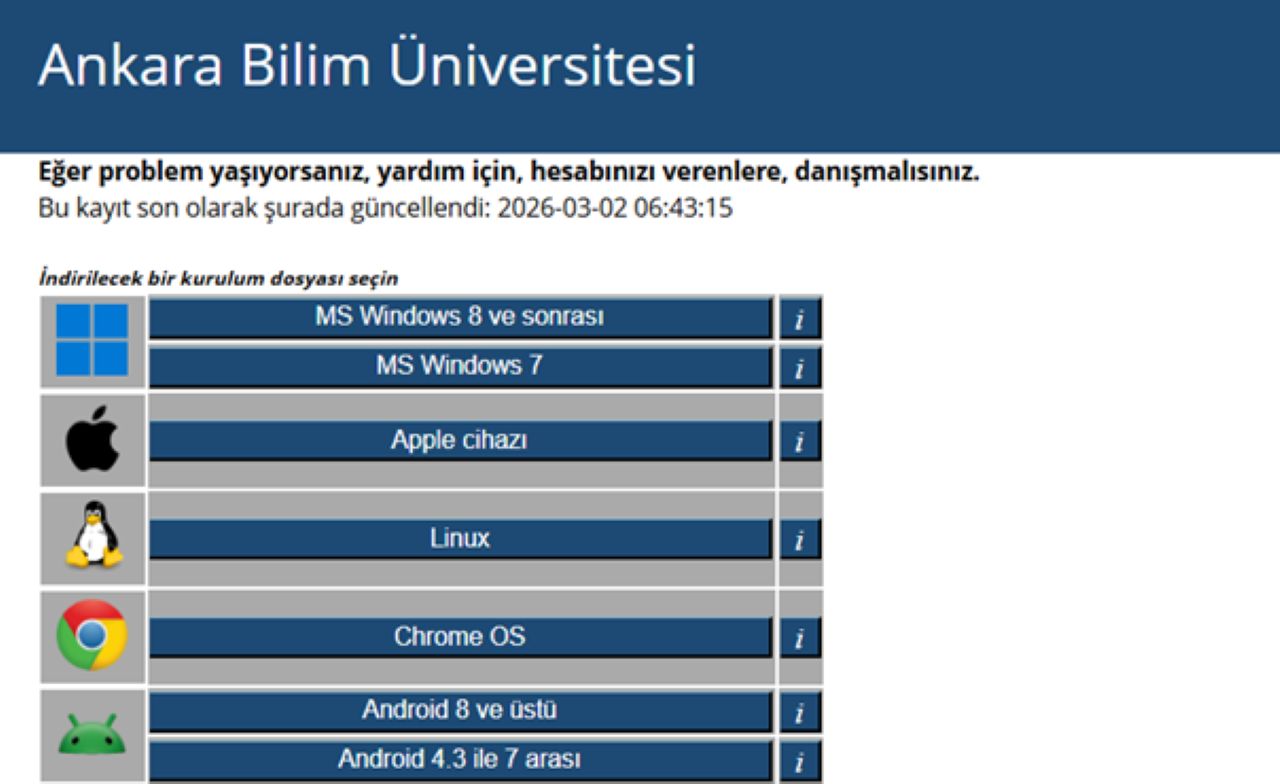
3. The system will automatically detect your operating system. Run the downloaded installer.
4. When prompted, enter your email address and password as your authentication credentials.
Note: A package will be recommended for your device. Use the “All platforms” link to view all available packages.
Setup for Mobile Devices
(Android and iOS)
For the smoothest setup experience on mobile devices, we recommend using the official geteduroam application developed by GÉANT.
1. Download the geteduroam application from Google Play Store or the App Store. Make sure you select the original application developed by SURF/GÉANT.
2. Open the application and select Ankara Science University from the list of institutions.
3. The application will then request your authentication credentials.
Login Information
Username: The account information provided to you by the University
Example: firstname.lastname@ankarabilim.edu.tr or s12345C78S@ankarabilim.edu.tr
Password: Your email password
4. After you enter and confirm your credentials, your device will connect to the “eduroam” network automatically and securely.
Alternative Setup: You can also open
cat.eduroam.org in your device browser and directly download the profile appropriate for your device.
Information: To connect securely on our campus and at participating institutions worldwide, the eduroam profile must be configured correctly on your device.